
Features · Flow
A built-in focus timer for client work, not a separate app
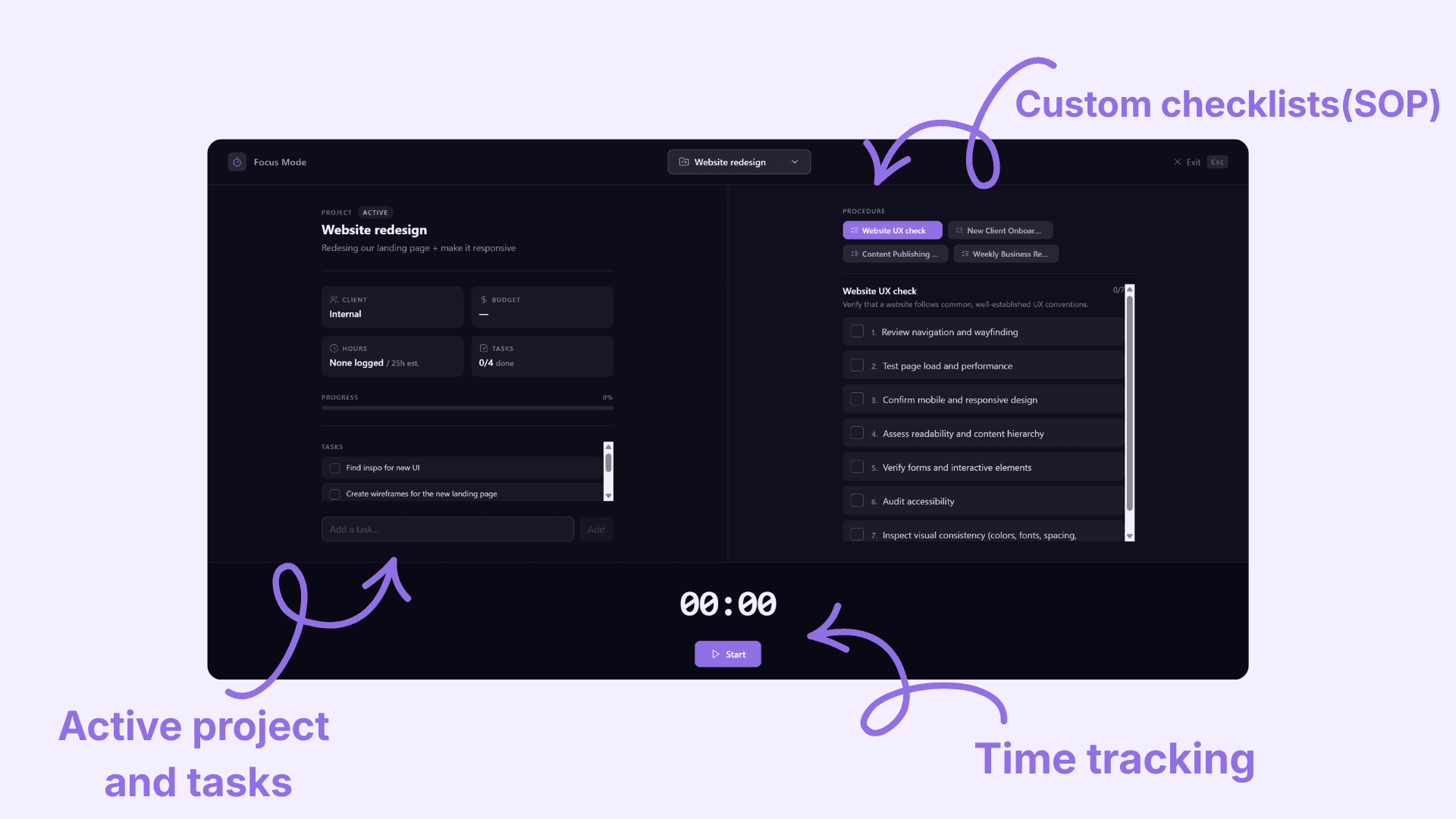
Focus mode is connected to your project tasks: the project you're working on, the exact SOP steps for that kind of work, and a simple timer, all in one distraction-free screen.
A deep work timer for consultants and freelancers who bill by the project, tracking actual hours against what you planned.
How it works
Three steps. It works as a distraction-free work timer for project management. You can use it for any project you like, both internal and external.
Open Focus Mode
One click from Flow's Overview tab or the Dashboard drops you straight into a full-screen view of a single project. No sidebar, no other tabs.
Work the SOP, not a blank list
Pick the checklist for this kind of work and tick off each step, right next to the project's real context: client, budget, hours logged, tasks.
Stop and save when you're done
The time you spent gets added to that project's logged hours, right alongside what you originally planned for it. Switch projects mid-session and the current one saves automatically first.
What makes it different
These are the specific choices that make it hold up during real client work.
You decide when to stop
The clock counts up for as long as the work takes. You work until it's done, then stop and save on your own terms.
The checklist is the actual SOP, and it stays checked
It's the exact step-by-step procedure you already built for this kind of work, with your progress saved between sessions.
Everything about the project, one glance away
Client, budget, hours logged, and the task list sit right next to the checklist, all on the same screen.
Actual hours against what you planned
Every session adds to the project's real logged hours, shown next to the hours you originally estimated, so you can see whether this kind of work is taking more or less time than you planned.
Built on real project data
Focus Mode reads directly from the same project record already sitting in Flow: status, client, budget, and the task list.
When you stop and save a session, that time gets added directly to the project's logged hours, right where the rest of your work already lives.
Why it lives inside Flow
It's a focus timer built into the business software you're already using for the project itself, so the hours you log land straight on the record they belong to.
One screen, one project, one number that stays accurate on its own.
Questions about Focus Mode
Is this a Pomodoro timer?
No. There are no forced intervals or countdowns. The timer counts up, and you decide when to stop and save.
Does the timer track time per task or per project?
Per project, shown against the hours you planned for that project. Individual task-level time tracking isn't available yet.
What happens to my SOP progress if I close Focus Mode?
It's saved. Checked steps on the SOP checklist persist between sessions, the same as the hours you've logged, so closing Focus Mode mid-task doesn't lose your place.
How do I protect deep work time as a consultant?
The most reliable way is removing the decision from each session: block time on your calendar in advance, and use a tool that puts the current project and its checklist in front of you the moment you sit down, so you're not deciding what to do first. That's most of what Focus Mode is built to do automatically.
How do I avoid context switching when I'm running a business alone?
Context switching usually comes from tools, not tasks: checking a separate timer app, a separate task list, and a separate notes doc for the same piece of work. Keeping the project, its checklist, and the timer in one screen removes most of the switching before it happens.
Is the Pomodoro technique good for client work?
It works well for some people, less well for open-ended client work that doesn't split cleanly into 25-minute blocks. Focus Mode takes the same core idea, a dedicated distraction-free session, without forcing a fixed interval on top of it.